
Day 25: Let's begin our journey with AWS ☁
Hi, I am an AWS-certified cloud engineer and I write about my progress and learnings of DevOps.
Hi Everyone,
Let's start our new journey with Cloud computing.
Amazon web service is an online platform that provides scalable and cost-effective cloud computing solutions. AWS is a broadly adopted cloud platform that offers several on-demand operations like compute power, database storage, content delivery, etc., to help corporates scale and grow.
IAM
AWS Identity and Access Management (IAM) is a web service that helps you securely control access to AWS resources. With IAM, you can centrally manage permissions that control which AWS resources users can access. You use IAM to control who is authenticated (signed in) and authorized (has permissions) to use resources.
Task1:
Create an IAM user with the username of your own wish and grant EC2 Access. Launch your Linux instance through the IAM user that you created now.
Go to AWS and search for IAM in search
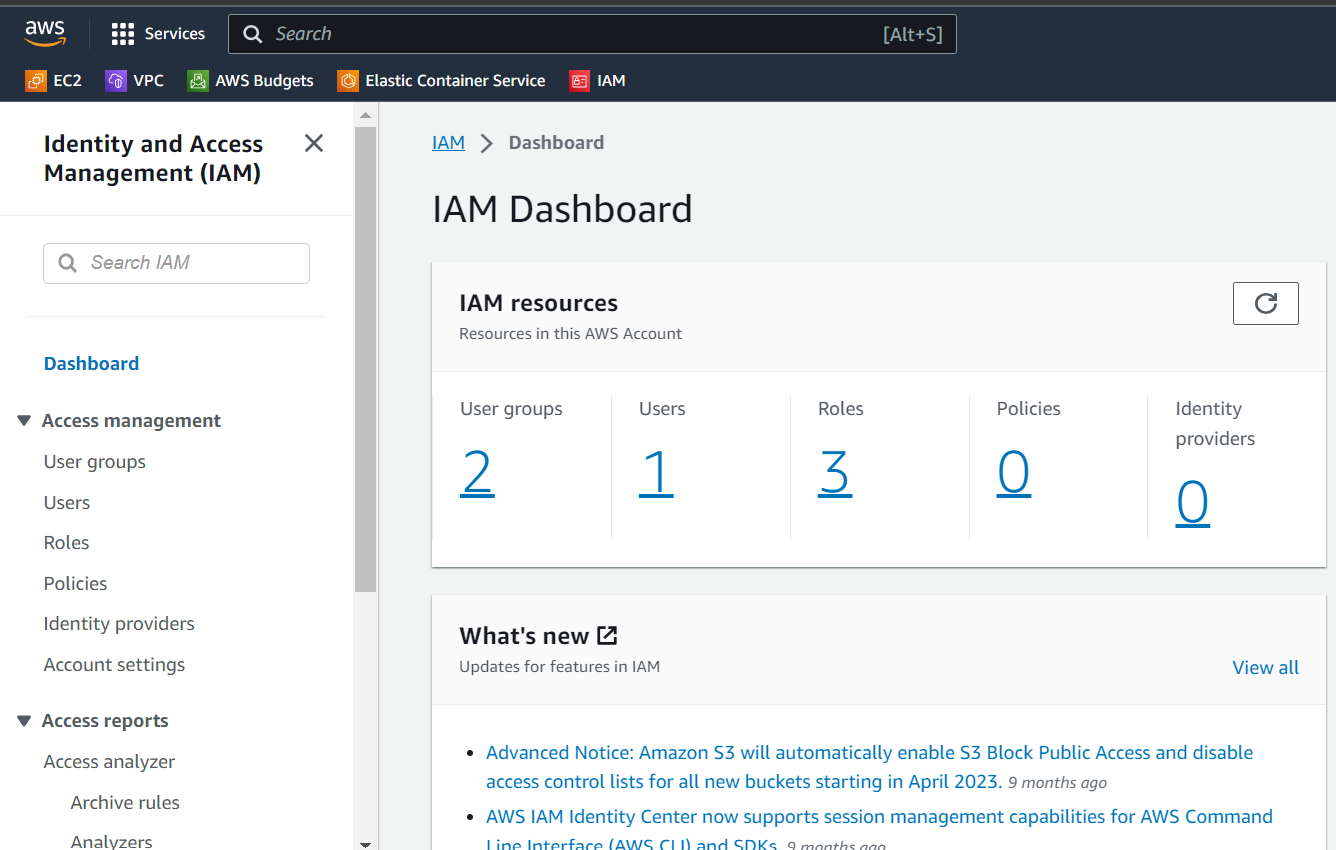
In the left corner, you can see Access Management. Go to Users.
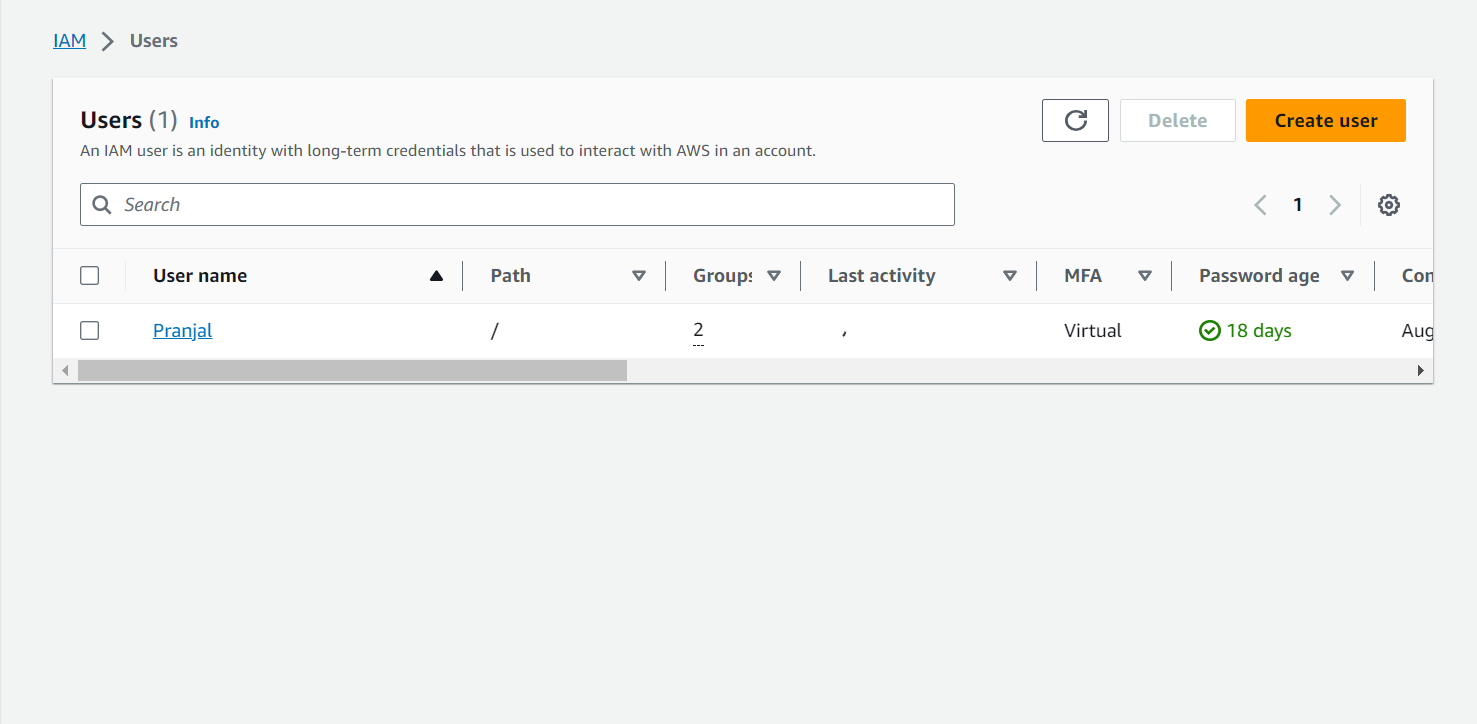
Click on Create User.
Step 1: Specify user details
Provide the username you want.
Select the checkbox for “Provide user access to the AWS Management Console — optional”.
Select “I want to create an IAM user”
Click on Next.
Step 2: Set permissions
Select “Attach policies directly” in the Permission Options.
In the Permission Policies search bar, search for EC2 and select “AmazonEC2FullAccess”.
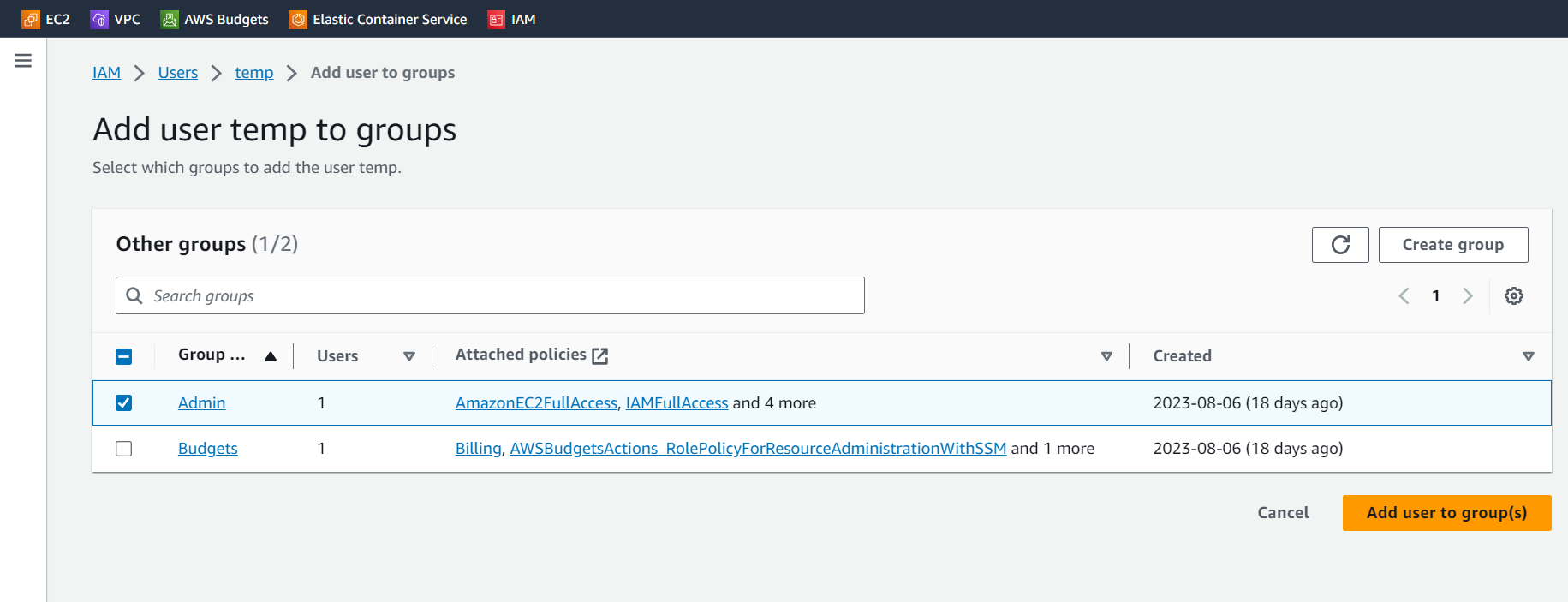
Step 3: Review and create
Review the details and click on “Create User”.
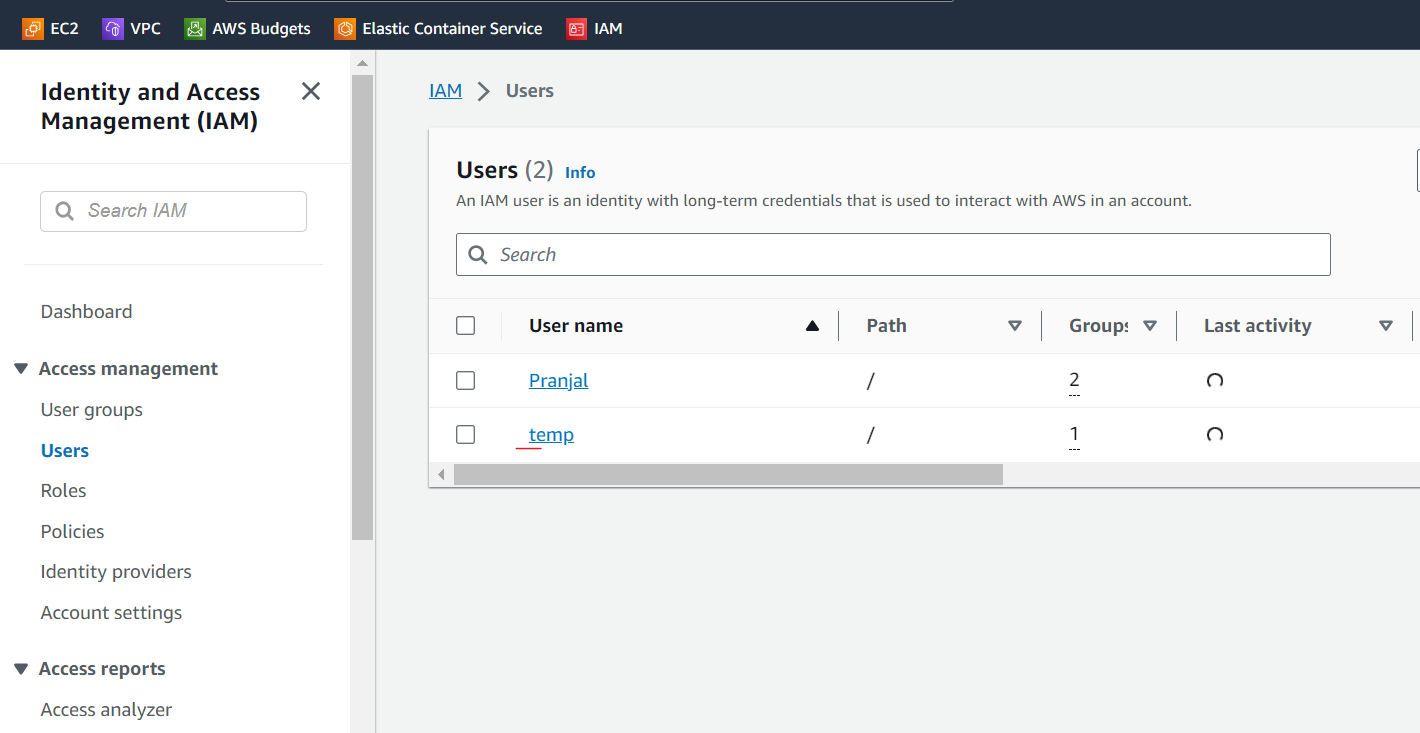
Make it a point to download the .csv file, open the file, and access the link provided in any other browser Log in to AWS as an IAM user.
Go to ec2, Launch a New Instance, and Review and create your instance.
Now, Connect to your instance
Note that you can’t connect to the instance using “EC2 Instance Connect” as you have not given the user access to ec2:InstanceConnect. So log in using SSH.
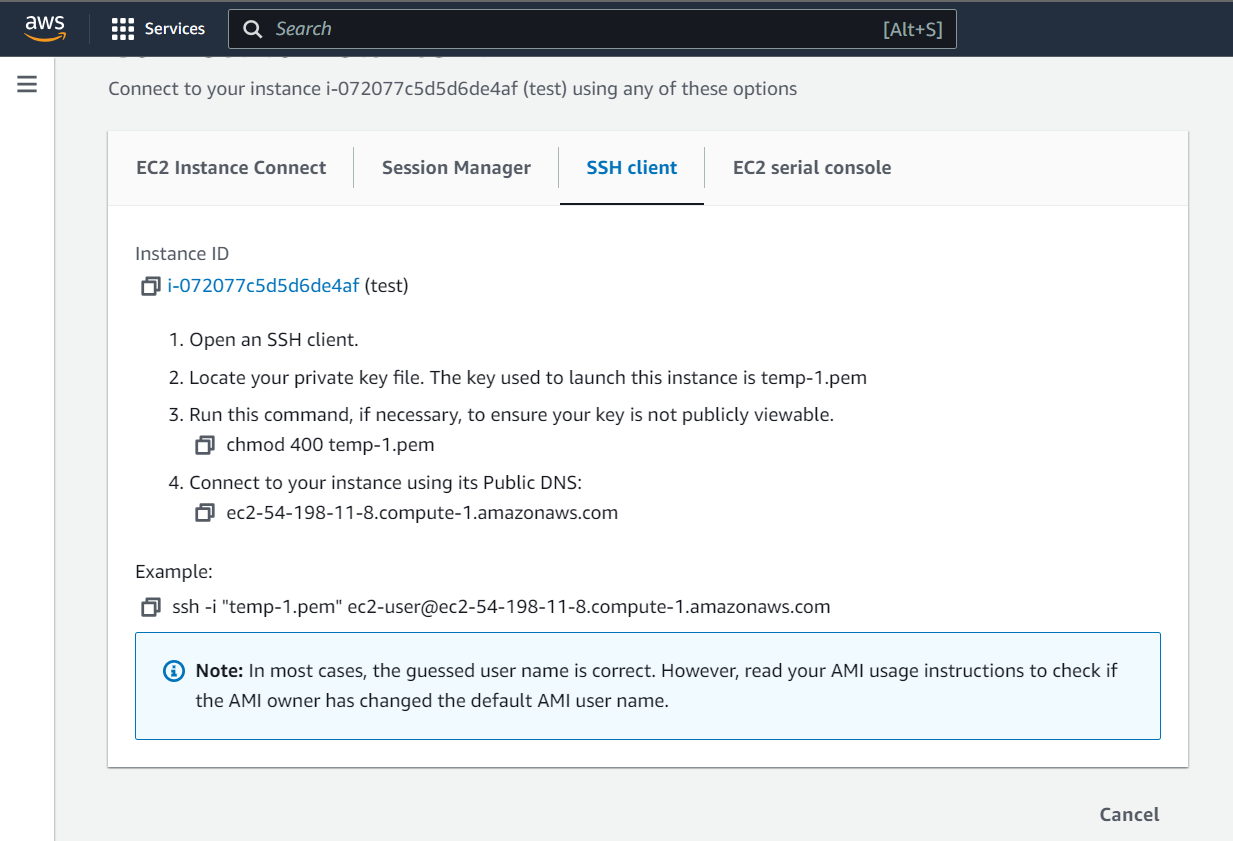
Connect via ssh where the keypair is stored.
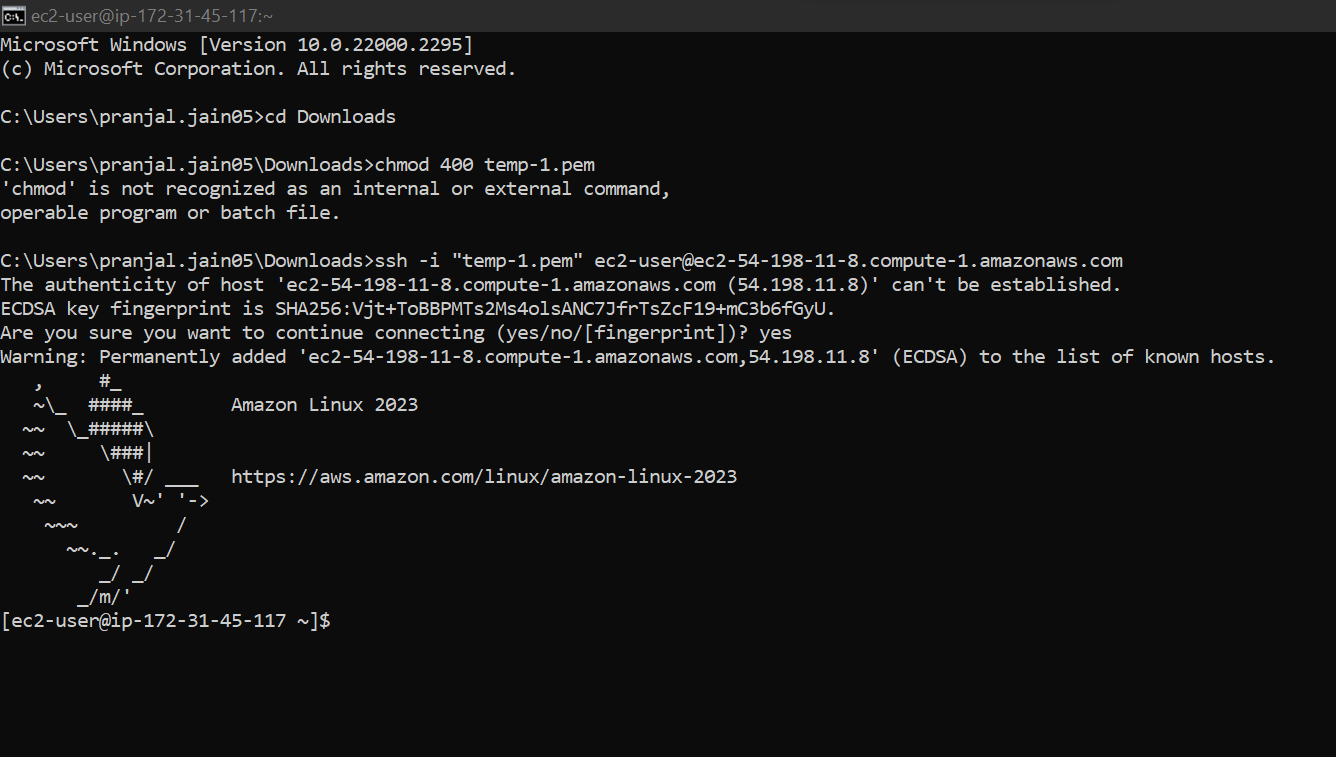
Task 2)In this task you need to prepare a DevOps team of Avengers. Create 3 IAM users of Avengers and assign them to DevOps groups with IAM policy.
Go to AWS Dashboard and Search for IAM service.
Go to Access Management > User Groups > Create Group > User Group Name “Avengers”
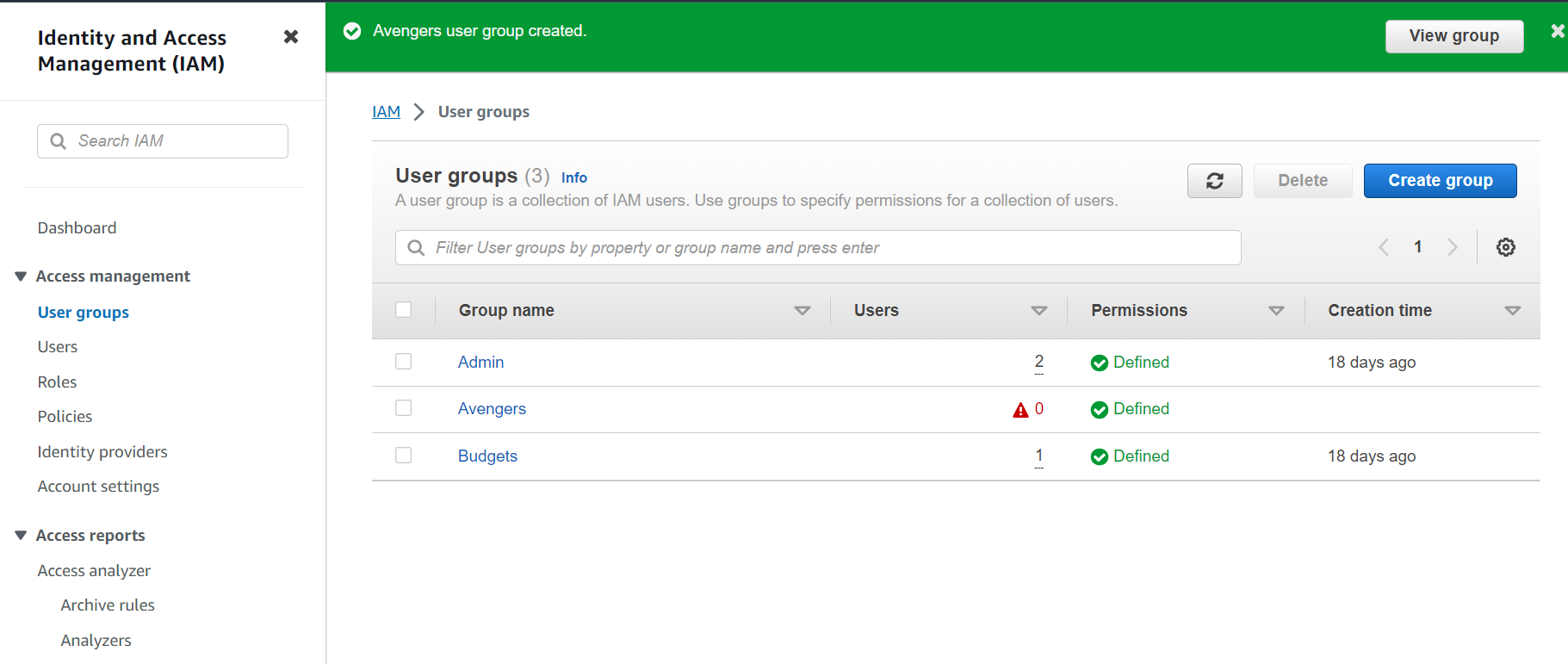
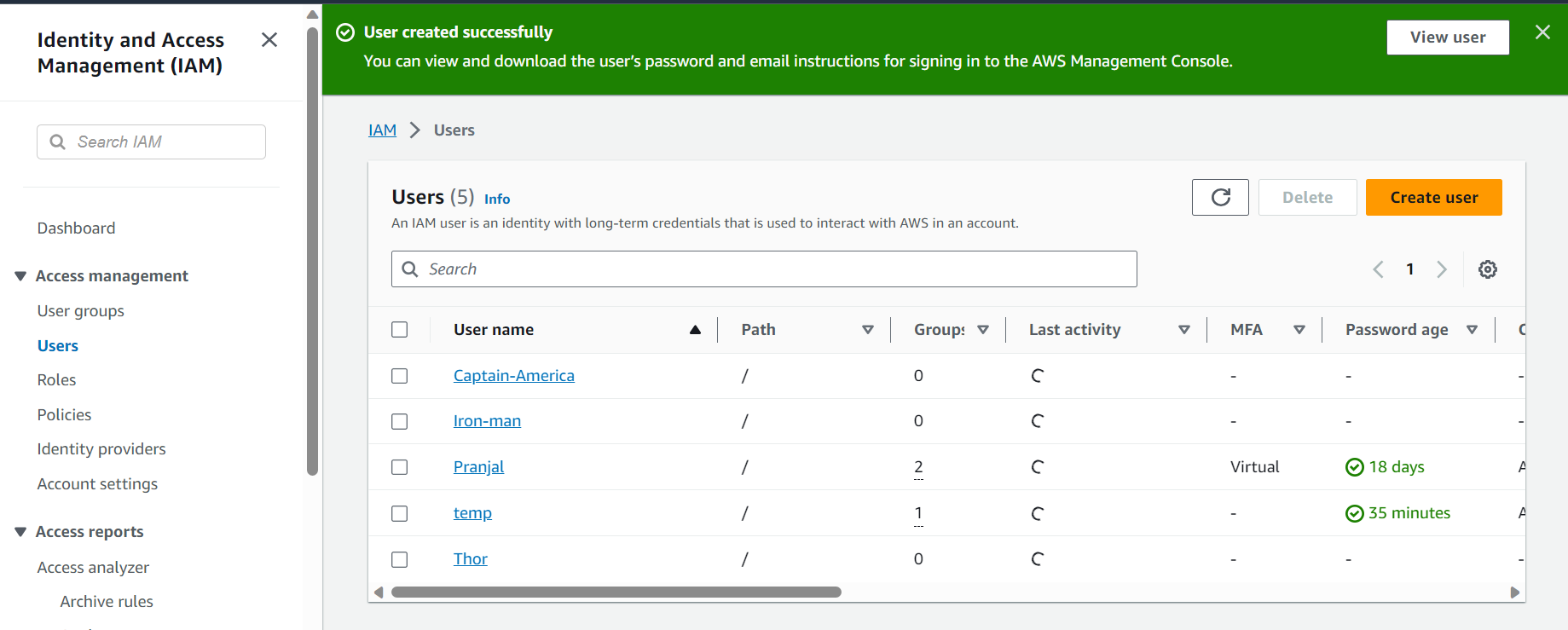
Go to Access Management > Users > Create 3 users named IronMan, CaptainAmerica, and Thor.
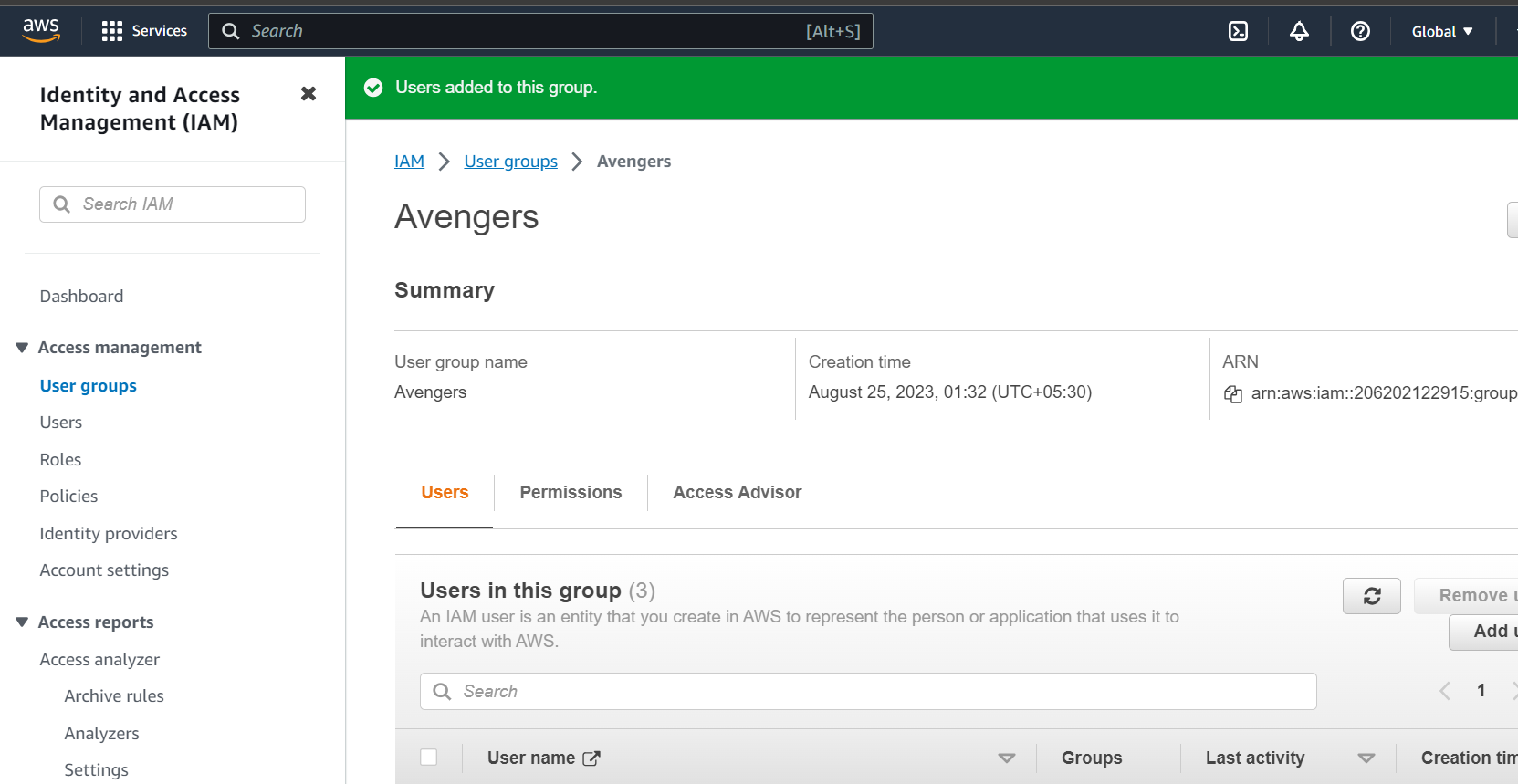
Go to User Groups > Open the Group Avengers > In the Users section > Click on Add Users >
Thanks for reading;)


