
Day 29: IAM Programmatic access and AWS CLI

Hi, I am an AWS-certified cloud engineer and I write about my progress and learnings of DevOps.
Hello Everyone!
In the last article, we understood load balancers. Today we will see an interesting way to access AWS services.
IAM Programmatic access
In order to access your AWS account from a terminal or system, you can use AWS Access keys and AWS Secret Access keys.
AWS CLI
The AWS Command Line Interface (AWS CLI) is a unified tool to manage your AWS services. With just one tool to download and configure, you can control multiple AWS services from the command line and automate them through scripts.
The AWS CLI v2 offers several new features including improved installers, new configuration options such as AWS IAM Identity Center (successor to AWS SSO), and various interactive features.
Tasks -
Task 1) Create AWS_ACCESS_KEY_ID and AWS_SECRET_ACCESS_KEY from AWS Console.
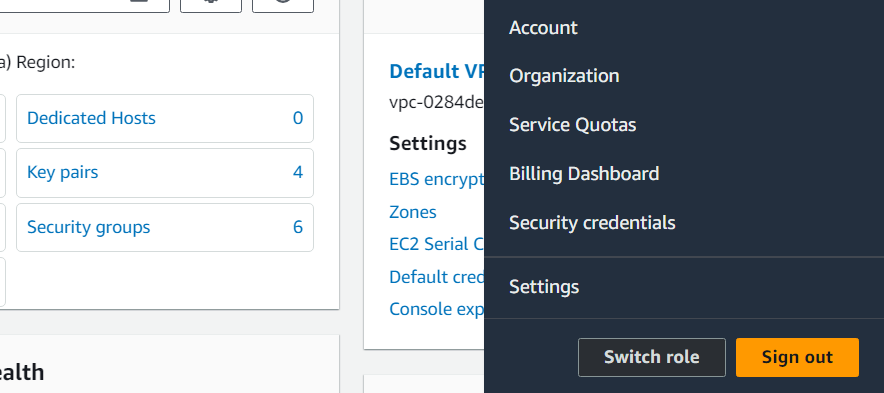
Open the AWS console, Click on your profile name > Security Credential
Scroll down to Access Keys > Select Create Access Key
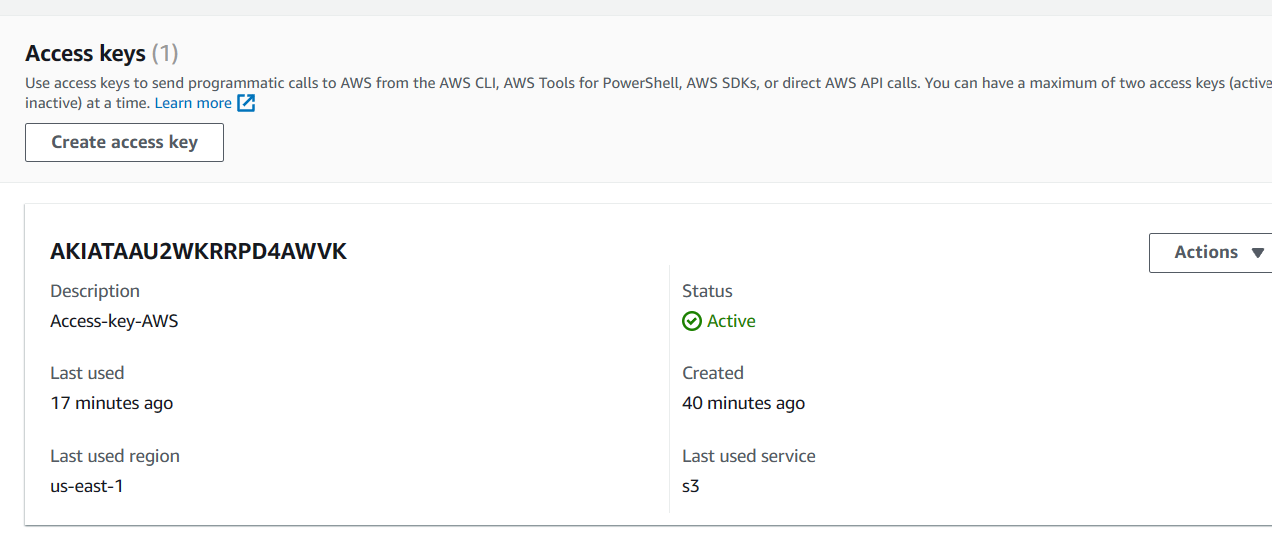
The Access key has been created. Download the .csv file to your desktop
Task 2) Set up and install AWS CLI and configure your account credentials.
I’m using Windows so to download AWS CLI on Windows run in Powershell
msiexec.exe /i https://awscli.amazonaws.com/AWSCLIV2.msi

AWS CLI has been installed on your device.
Configure your account credentials by using:
aws configure
Give the Access Key ID, and Secret Access Key that you’ve downloaded in .csv file and pass the region name and output format as given below.
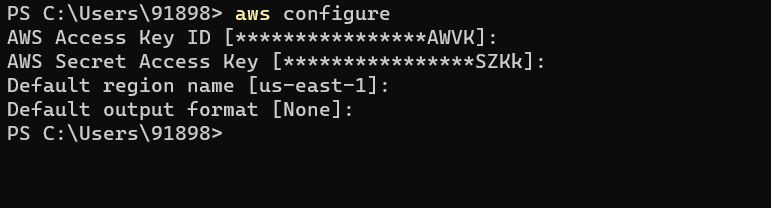
You can check if the AWS CLI is working or not. To check the S3 bucket details:
aws s3 ls

Troubleshooting
As a part of the installation of AWS CLI on my Windows machine, I encountered an error that even after installation AWS CLI was not working. I searched on the web and found one solution on stack overflow.
$command = "[Net.ServicePointManager]::SecurityProtocol = [Net.SecurityProtocolType]::Tls12"
Invoke-Expression $command
Invoke-WebRequest -Uri "https://awscli.amazonaws.com/AWSCLIV2.msi" -Outfile C:\AWSCLIV2.msi
$arguments = "/i `"C:\AWSCLIV2.msi`" /quiet"
Start-Process msiexec.exe -ArgumentList $arguments -Wait
$env:Path = [System.Environment]::GetEnvironmentVariable("Path","Machine")
aws --version
PowerShell does not recognize AWS CLI installed in the same script
Thanks for reading ;)


